Deep Learning Tutorial Series
- Module 0 — Environment Setup (Beginner Guide)
- Module 1 — Machine Learning & Neural Network Basics
- Module 2 — Training & Learning Process
- Module 3 — Practical Deep Learning with PyTorch
- Module 4 — CNNs and Computer Vision
- Module 5 — Deep Learning Architectures
- Module 6 — Modern Deep Learning Overview
This guide helps you set up a working Python environment for deep learning using PyTorch. After completing this module, you will be able to run neural network code locally or in notebook environments.
0.1 What You Will Achieve
By the end of this setup:
- Python is installed correctly
- A clean environment is created
- PyTorch is installed and verified
- Jupyter Notebook or VS Code is ready
- A simple tensor operation runs successfully
0.2 Install Python Environment
Using Anaconda / Miniconda. Best for beginners due to easy package management.
Step 1: Install Anaconda
Download: https://www.anaconda.com/docs/getting-started/concepts/anaconda-or-miniconda
Verify installation: Open Acaconda Prompt terminal window, run
conda --version
Expected output:
conda 26.x.x
Step 2: Create a New Environment
Create environment:
conda create -n dl python=3.10 -y
Activate it:
conda activate dl
Check Python version:
python --version
Expected output:
Python 3.10.x
0.3 Install VS Code
- Download: https://code.visualstudio.com/
- Tutorial: https://code.visualstudio.com/docs/python/python-tutorial
- If you are using VS Code and Anaconda, check this tutorial for configuration.
0.4 PyTorch
Installation
Official selector: https://pytorch.org/get-started/locally/
Select the right installation according to your OS, and compute platform. One example is shown below
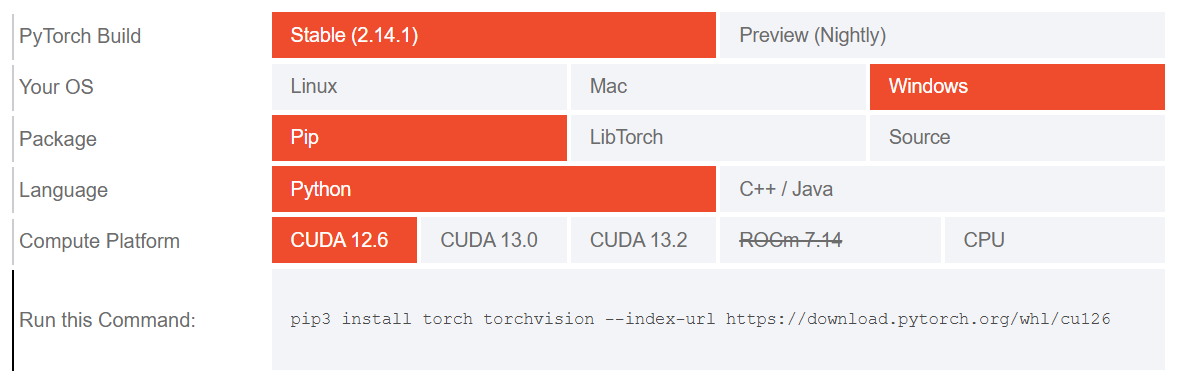
Run the command line in the Acaconda Prompt terminal window for installation.
Verify Installation
In the Python command window, type
python
Run:
import torch

print("PyTorch version:", torch.__version__)
print("CUDA available:", torch.cuda.is_available())

x = torch.tensor([1.0, 2.0, 3.0])
print("Tensor:", x)
print("Sum:", x.sum())
Expected output:
PyTorch version: x.x.x
CUDA available: False (or True)
Tensor: tensor([1., 2., 3.])
Sum: tensor(6.)
0.5 Final Checklist
Before moving on, ensure:
- Environment activates successfully
- Python runs
- PyTorch imports correctly
- Tensor operations work
- No installation errors
Acknowledgement
Some content on this page was prepared or edited with assistance from ChatGPT.
Return to the Main Page of Deep Learning and Machine Learning .